

Storage Options
Every GPU instance comes with onboard storage included, plus the option to attach persistent storage volumes.Where to Find Storage in the App
Storage options are available in the dashboard under GPUs → On-Demand GPUs → Storage. To create a storage volume, click Create New Storage in the upper-right corner of the page.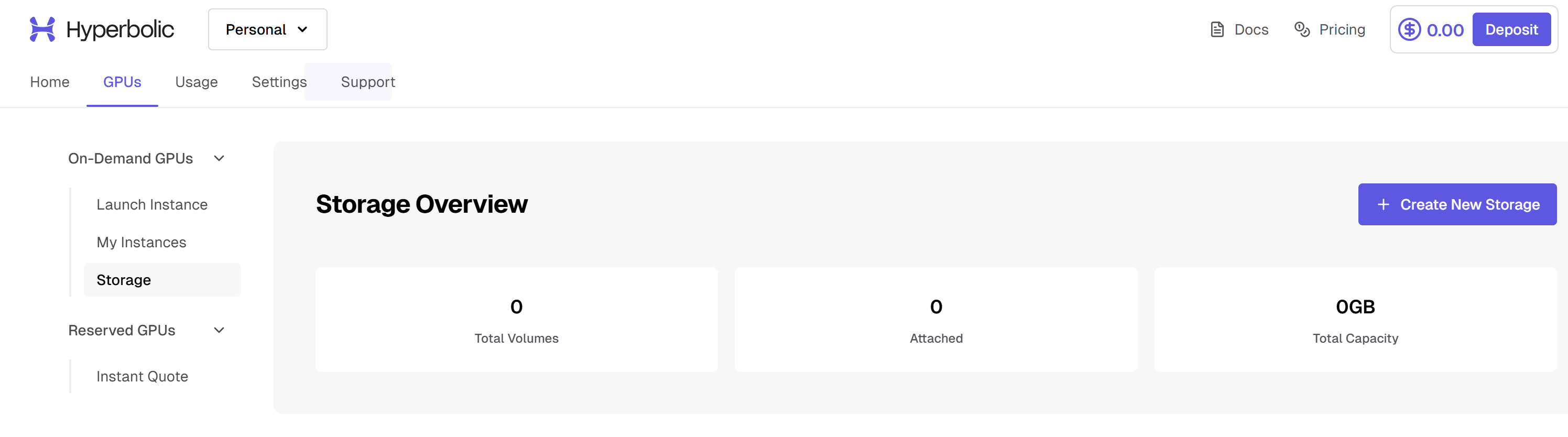
Storage Types Overview
- Onboard Storage
- Persistent Storage
Automatically Included with Every Instance
- Cost: Free (included with instance pricing)
- Provisioning: Automatically available when instance starts
- Persistence: ❌ Erased when instance is terminated
- Performance: High-speed NVMe SSD (up to 7,000 MB/s)
- Use Cases: Active training, temporary data, cache, scratch space
Requesting Custom Storage Configurations
If the standard options don’t fit your workload — a region without a storage option in the console, larger volumes, specific performance requirements, or shared storage across a cluster — email support@hyperbolic.ai with:- Region(s) where you need the storage
- Capacity and expected growth
- Performance needs (throughput/IOPS, sequential vs. random access)
- Duration — how long you’ll need it, and whether it’s tied to a reservation
- Attachment plan — single instance, or shared across multiple instances/a cluster
Working with Storage
Using Onboard Storage
Onboard storage is automatically mounted and ready to use when your instance starts:The exact mount points may vary by instance configuration. Use
df -h or lsblk to see all available storage.Creating and Attaching Persistent Storage
1
Create Persistent Volume
In the Hyperbolic web console:
- Navigate to the Storage section
- Click “Create Persistent Volume”
- Specify size (100GB - 10TB)
- Select a region that supports storage volumes
- Name your volume for easy identification
2
Attach to Instance
After creating the volume:
- Go to your running instance details
- Click “Attach Storage”
- Select your persistent volume from the list
- The volume will be attached as a block device (e.g.,
/dev/vdb)
3
Mount and Use
SSH into your instance and mount the volume:
Storage Configuration
Storage Planning by Workload
When launching an instance, plan your storage strategy based on your workload and available options: Training Workloads:- Use onboard storage for active training data and scratch space
- If available in your region, attach persistent storage for:
- Model checkpoints
- Final trained models
- Datasets you want to reuse
- For regions without persistent storage, implement regular backups to S3/GCS/Azure
- Use onboard storage for active development
- Save important results to persistent storage or external services
- Implement git hooks to backup code changes
Managing Storage Volumes
1
Check Your Onboard Storage
- System root volume (OS and applications)
- Additional data volume (varies by configuration, up to 24TB)
2
Manage Persistent Storage Volumes
If you’ve created persistent storage (available in select regions):
3
Transfer Data Before Termination
Before terminating an instance:
Data Management Best Practices
Organizing Your Storage
Using Onboard Storage (All Instances):Backup Strategies
Since onboard storage is erased on termination, implement appropriate backup strategies: For Instances with Persistent Storage:Optimizing Storage Performance
Storage Best Practices
Storage Best Practices
Maximize Onboard Storage Performance:Data Lifecycle Management:
- Onboard NVMe provides up to 7,000 MB/s throughput
- Use for active datasets and model training
- Keep frequently accessed files on onboard storage
- Clean temporary files regularly to maintain performance
- Network-attached with up to 1,000 MB/s throughput
- Best for long-term storage, not active training
- Use for model archives and dataset libraries
- Consider compression for infrequently accessed data
Port Configuration
Configure network ports to enable access to services running on your GPU instances.Opening inbound ports
Inbound ports on your instance’s public IP are closed by default except SSH. When you launch an instance, add the ports you need in the port configuration field of the launch form. They’re open by the time the instance is ready. After launch, port changes are made by our team — editing ports on a running instance is on the roadmap. Message support (chat widget or support@hyperbolic.ai) with:- the instance name(s) and public IP(s)
- the ports and protocol (for example
443/tcp,3000/tcp)
Port 22 is reserved for platform SSH and can’t be reassigned to your own service. If something you run wants port 22, put it on another port (2222 is the usual choice) and open that instead.
Exposing Services
SSH Port Forwarding
The most secure method for accessing services:- Jupyter Notebook
- TensorBoard
- Custom Service
Multiple Port Forwarding
Advanced Networking
SOCKS Proxy Configuration
For full network access through your instance:Persistent Tunnels
Useautossh for maintaining persistent connections:
Security Considerations
Best Practices
- Use SSH tunnels for all development services
- Implement authentication before exposing any service
- Enable HTTPS for production deployments
- Monitor access logs regularly
- Rotate SSH keys periodically
Storage and Port Automation
Monitoring and Alerts
Set up monitoring for both storage types:Troubleshooting
Common Storage Issues
Persistent Storage Not Mounting
Persistent Storage Not Mounting
Symptoms: Persistent volume not visible or mount failsSolutions:Note: Persistent storage must be created in the web console first, then attached to your instance.
Disk Space Running Low
Disk Space Running Low
Symptoms: Training fails, services crash, unable to save checkpointsSolutions:Prevention Tips:
- Set up automated cleanup in cron
- Use persistent storage for long-term data (if available)
- Stream large datasets instead of downloading
- Implement regular backups to external storage
Common Port Issues
Port Already in Use
Port Already in Use
Symptoms: Service fails to start on specified portSolutions:
Cannot Access Service
Cannot Access Service
Symptoms: Service running but not accessibleSolutions:
Getting Help
If you encounter issues with storage or port configuration:- Check the instance logs in the web console
- Review the troubleshooting section above
- Use the Pylon widget in the console for immediate assistance
- Contact support@hyperbolic.ai with:
- Instance ID
- Error messages
- Steps to reproduce the issue