Three everyday problems interrupt long GPU runs: a machine that stops responding, a teammate who can't log in, and a card that gets declined.
Until now, each of those meant stopping and waiting: for support, for a new server, or for a fresh balance. Over the past month we shipped three updates so you can handle each one yourself, with no support ticket and no relaunch.
When your machine hangs: reboot it yourself
Open the instance's actions menu and choose Reboot, or make one API call.
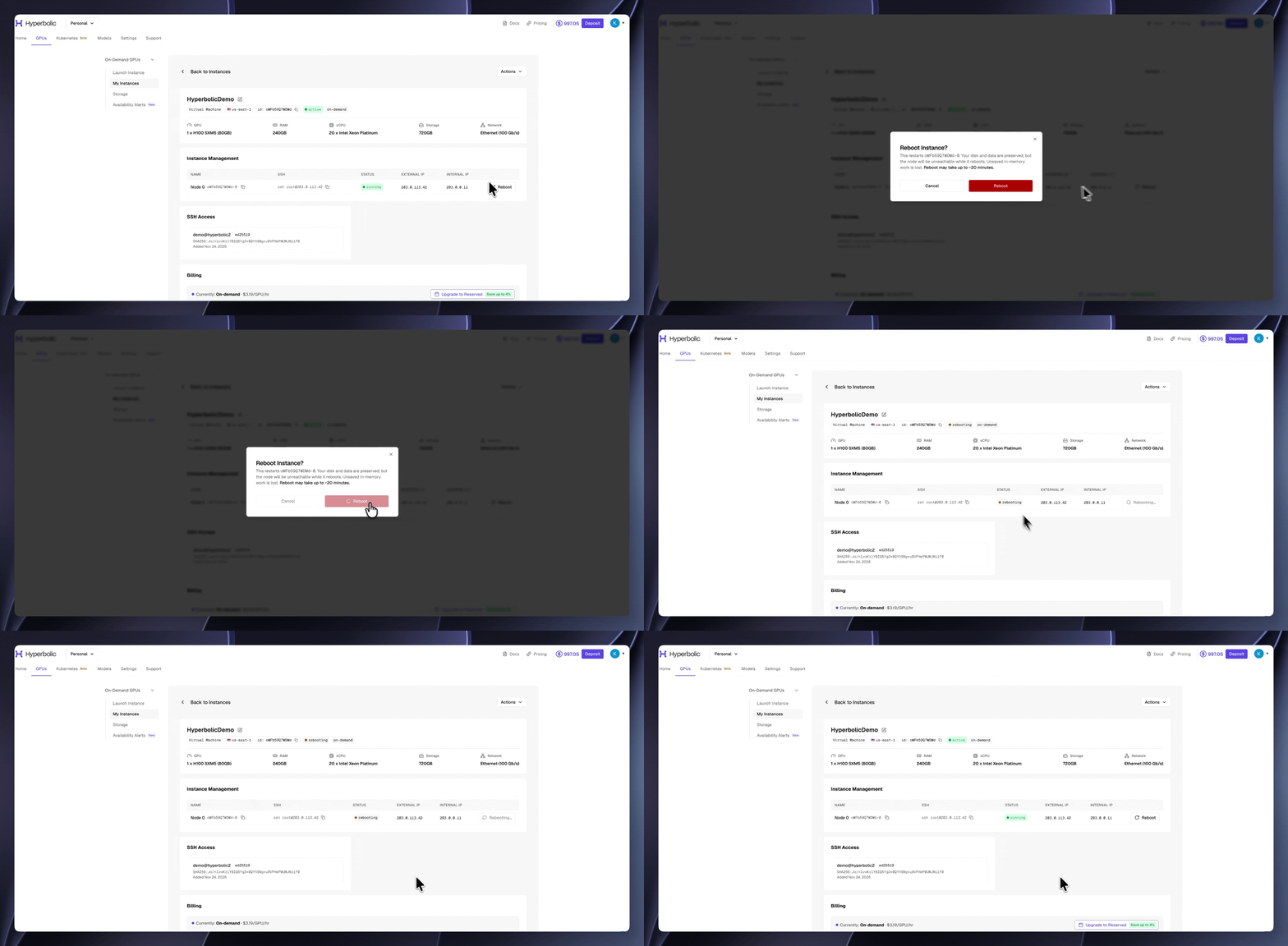
The reboot goes through our platform, not the operating system, so the instance comes back with its setup and network configuration intact.
Your disk is preserved. Memory is cleared, so save your work first.
Available on bare metal and in more VM regions, with more coming this month.
Don't see Reboot? That instance doesn't support it yet.
When someone needs access: give them their own key
Attach several SSH keys to one instance, so each person connects with their own.
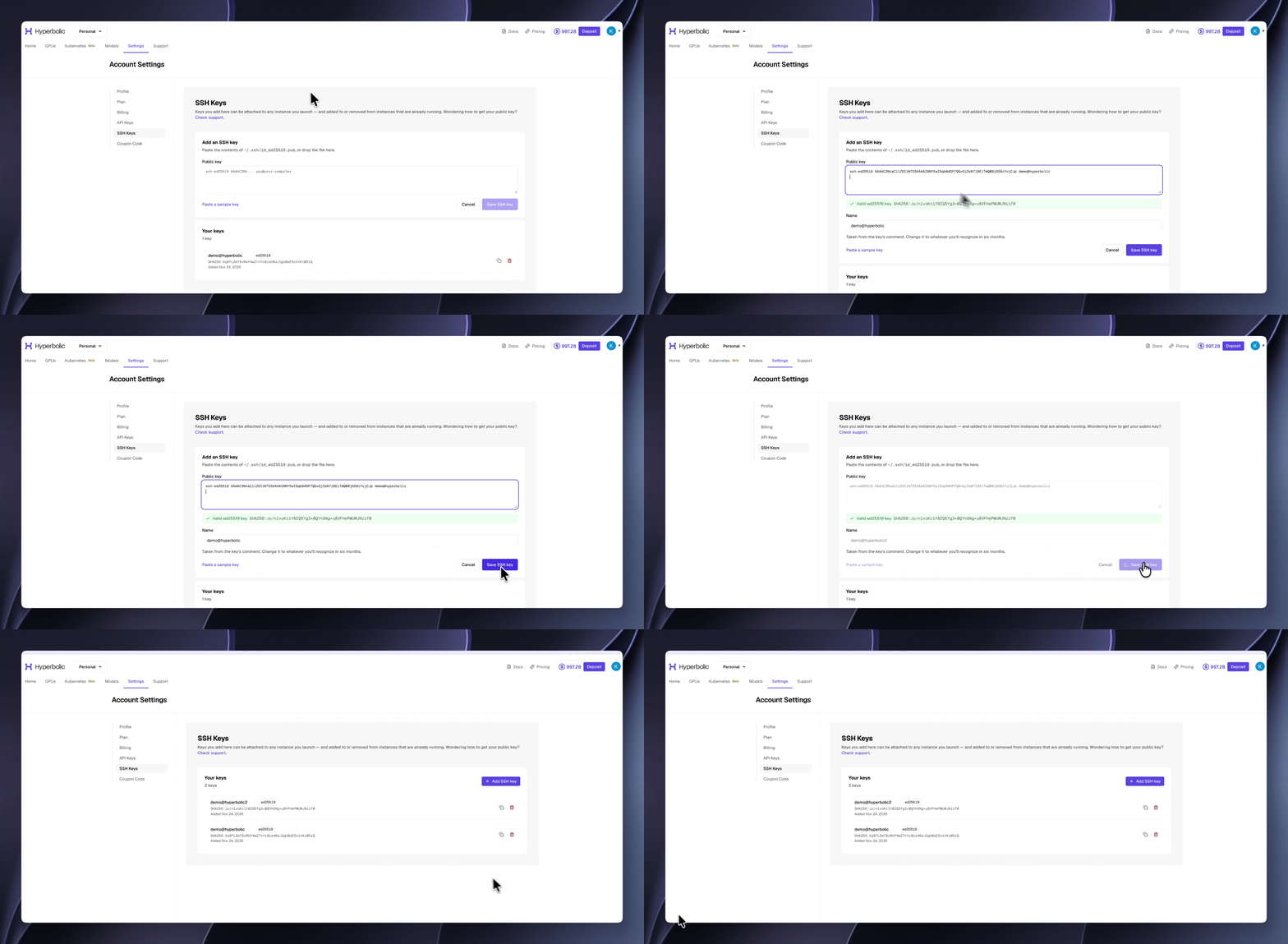
On a running instance, open SSH Access and click Add key. It's live in about 20 seconds, with no reboot.
Share keys across your organization, with admins in control of who can remove them.
Attach and detach keys through the API.
Live changes work on supported VM instances. They aren't on bare metal or in every region yet.
When a card is declined: let your backup cover it
On-demand GPUs run from a prepaid balance that auto top-up refills. If your card is declined and the balance reaches $0, on-demand instances shut down. Now you can save a backup card.
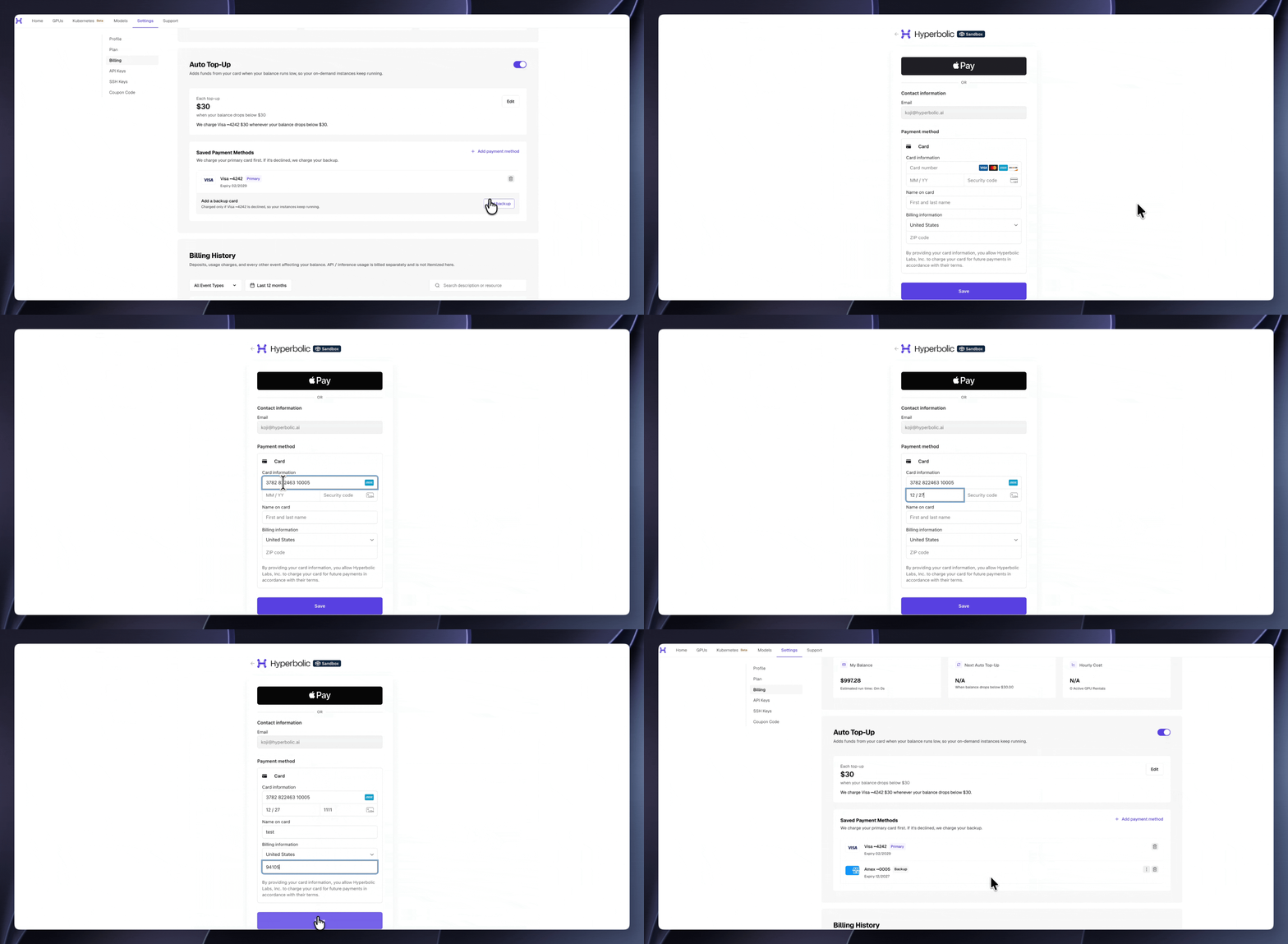
If an auto top-up on your main card is declined, we charge your backup for the same amount.
Your main card is always charged first, and the backup only covers auto top-up.
If both cards are declined, the top-up fails.
Set it up before you need it
Add your team's keys in Settings > SSH Keys.
Add a backup card in Settings > Billing, with auto top-up on.
Reboot is already in your instance's actions menu.
Read the guides: Rebooting an instance · SSH keys · Backup cards
Frequently asked questions
No. Your disk is preserved. Memory is cleared, so save your work before you reboot.
Reboot only appears on running instances that support it. We're adding regions throughout the month.
Yes. One call reboots one instance in a rental.
Yes, on supported instances. Open SSH Access and click Add key. It's live in about 20 seconds, with no reboot.
Not yet.
Any member can add a key. Only admins and the person who launched the instance can remove one.
Only when an auto top-up on your main card is declined. We charge the backup the same amount.
Yes, if both cards are declined. When your balance reaches $0, on-demand instances shut down and their data is deleted.
No. The backup only covers auto top-up charges.