> ## Documentation Index
> Fetch the complete documentation index at: https://docs.hyperbolic.ai/docs/llms.txt
> Use this file to discover all available pages before exploring further.
# Getting Started
> Set up your Hyperbolic account and launch your first AI workload in minutes
## Getting Started
[Sign up for Hyperbolic](https://app.hyperbolic.ai), then verify your email address. Check your inbox for a verification email and click the link to activate your account. Once verification is complete, you will be able to access the Hyperbolic platform.
Before launching GPU instances or using Inference, add funds to your account.
Go to Billing → Add Funds, or click the Deposit icon in the top-right of your dashboard. Add at least \$5.00 to your balance, then complete your payment through Stripe.
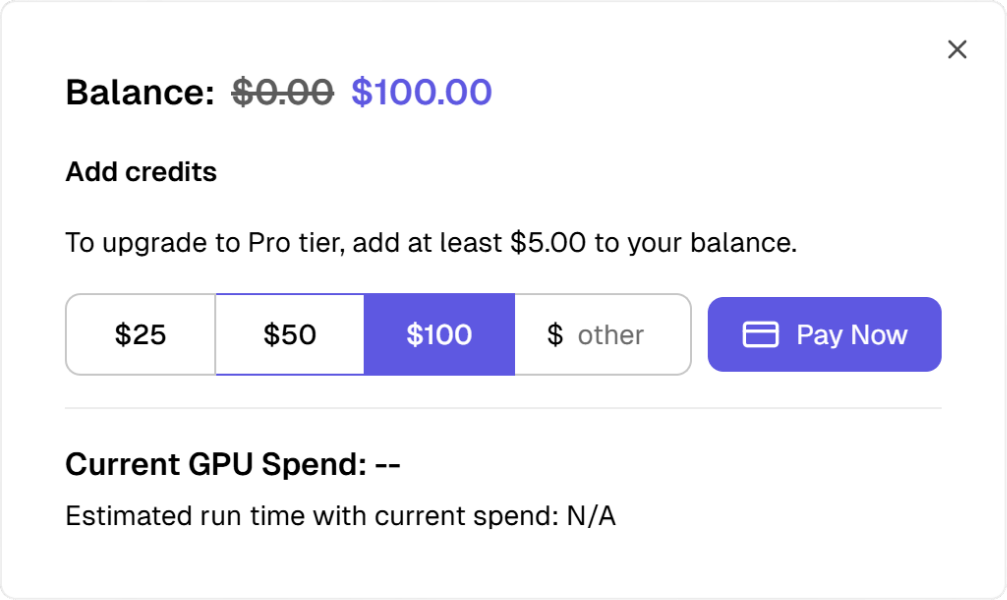 Pro tip: Enable Auto Top-Up to help avoid interruptions. Auto Top-Up automatically adds credits to your account when your balance gets low, helping prevent active instances from being stopped or terminated because of insufficient funds.
Set up automatic reloading to ensure uninterrupted service:
1. Go to Billing → Auto Top-Up Settings
2. Set your minimum balance threshold (e.g., \$20)
3. Choose auto-reload amount (e.g., \$50)
4. Save your preferences
You can manage your payment method, credits, and Auto Top-Up settings from the Billing page.
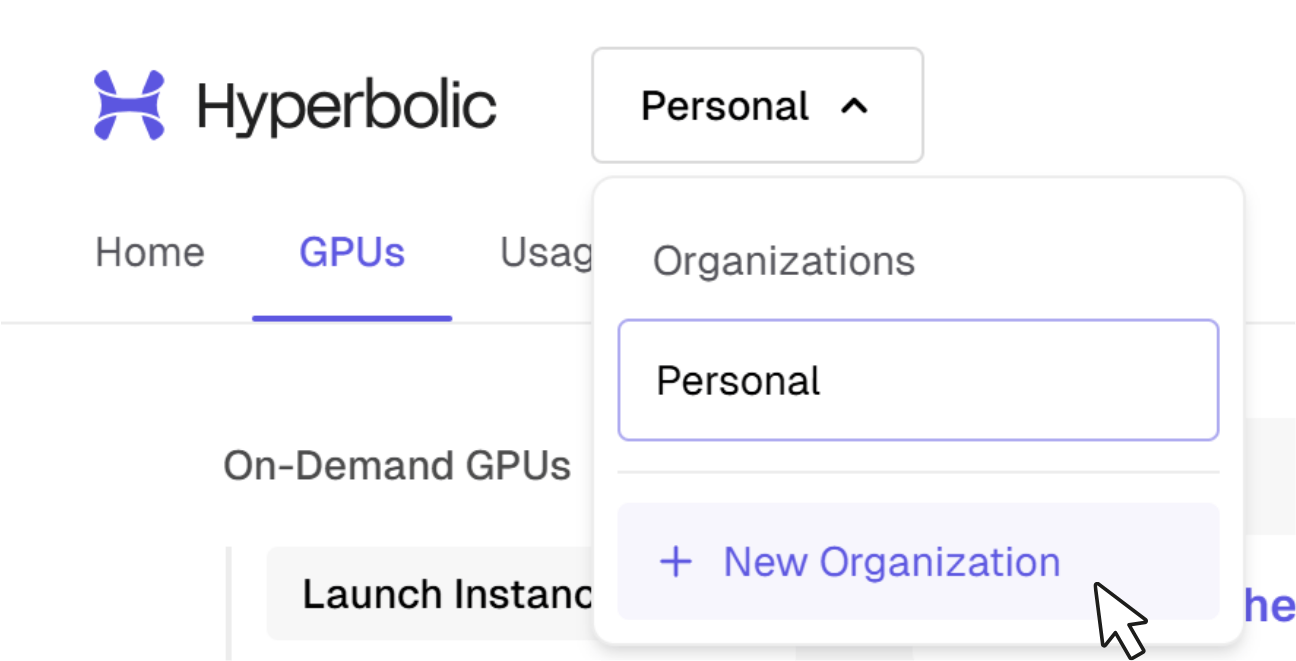
If you are working with a team, create or join an Organization before launching workloads.
Organizations let teammates share access to the same workspace, billing balance, and infrastructure usage. After creating or joining an Organization, invite your teammates so everyone can manage resources from one account instead of using separate individual accounts.
You can manage Organizations from the top-left menu in your dashboard.
Pro tip: Enable Auto Top-Up to help avoid interruptions. Auto Top-Up automatically adds credits to your account when your balance gets low, helping prevent active instances from being stopped or terminated because of insufficient funds.
Set up automatic reloading to ensure uninterrupted service:
1. Go to Billing → Auto Top-Up Settings
2. Set your minimum balance threshold (e.g., \$20)
3. Choose auto-reload amount (e.g., \$50)
4. Save your preferences
You can manage your payment method, credits, and Auto Top-Up settings from the Billing page.
If you are working with a team, create or join an Organization before launching workloads.
Organizations let teammates share access to the same workspace, billing balance, and infrastructure usage. After creating or joining an Organization, invite your teammates so everyone can manage resources from one account instead of using separate individual accounts.
You can manage Organizations from the top-left menu in your dashboard.
 Select the product that matches your workload:
* Need flexible GPU access? Start with [On-Demand GPUs](/docs/on-demand/overview).
* Need predictable capacity at a lower rate? Reserve it self-serve with [Reserved](/docs/reserved/overview).
* Need dedicated, custom-built infrastructure? [Contact the team](mailto:sales@hyperbolic.ai) about Private Cloud.
* Need API-based model serving? Use [Inference](/docs/inference/overview).
Launch workloads, test infrastructure, serve models, and scale into reserved or dedicated capacity when your requirements become predictable.
Follow the quickstart for your path:
* [On-Demand GPU Quick Start](/docs/on-demand/quickstart) — launch your first GPU instance
* [Inference Quick Start](/docs/inference/quickstart) — call the API in minutes
Launching a GPU instance requires an SSH key on your account. Add one in your account settings — see [Account Management](/docs/general/account-management) for details.
## Platform Capabilities
Start with on-demand GPU instances, then move into reserved or private infrastructure as workloads scale.
Serve models through API-based inference when you do not need to manage GPU instances directly.
Support training, fine-tuning, inference, and production AI workloads with infrastructure that can grow with your team.
## Ready to Build?
Choose the infrastructure path that matches your workload today, then scale as your requirements become clearer.
**Useful links:**
* [Dashboard](https://app.hyperbolic.ai) — manage instances, billing, and organizations
## Need Help?
* 📧 Email: [support@hyperbolic.ai](mailto:support@hyperbolic.ai)
## Common Issues
* Credit card payments appear instantly
* Contact support if credits don't appear within 30 minutes
1. Ensure your SSH key is added to your account
2. Check instance is in "running" state
* Free tier: 60 requests/minute
* Pro tier: 600 requests/minute
* Enterprise: Unlimited
* See [Rate Limits](/docs/inference/performance-limits) for details
Select the product that matches your workload:
* Need flexible GPU access? Start with [On-Demand GPUs](/docs/on-demand/overview).
* Need predictable capacity at a lower rate? Reserve it self-serve with [Reserved](/docs/reserved/overview).
* Need dedicated, custom-built infrastructure? [Contact the team](mailto:sales@hyperbolic.ai) about Private Cloud.
* Need API-based model serving? Use [Inference](/docs/inference/overview).
Launch workloads, test infrastructure, serve models, and scale into reserved or dedicated capacity when your requirements become predictable.
Follow the quickstart for your path:
* [On-Demand GPU Quick Start](/docs/on-demand/quickstart) — launch your first GPU instance
* [Inference Quick Start](/docs/inference/quickstart) — call the API in minutes
Launching a GPU instance requires an SSH key on your account. Add one in your account settings — see [Account Management](/docs/general/account-management) for details.
## Platform Capabilities
Start with on-demand GPU instances, then move into reserved or private infrastructure as workloads scale.
Serve models through API-based inference when you do not need to manage GPU instances directly.
Support training, fine-tuning, inference, and production AI workloads with infrastructure that can grow with your team.
## Ready to Build?
Choose the infrastructure path that matches your workload today, then scale as your requirements become clearer.
**Useful links:**
* [Dashboard](https://app.hyperbolic.ai) — manage instances, billing, and organizations
## Need Help?
* 📧 Email: [support@hyperbolic.ai](mailto:support@hyperbolic.ai)
## Common Issues
* Credit card payments appear instantly
* Contact support if credits don't appear within 30 minutes
1. Ensure your SSH key is added to your account
2. Check instance is in "running" state
* Free tier: 60 requests/minute
* Pro tier: 600 requests/minute
* Enterprise: Unlimited
* See [Rate Limits](/docs/inference/performance-limits) for details